nocturne
Typora Nocturne Theme
A single-file dark Typora theme inspired by the Kiro IDE color palette.
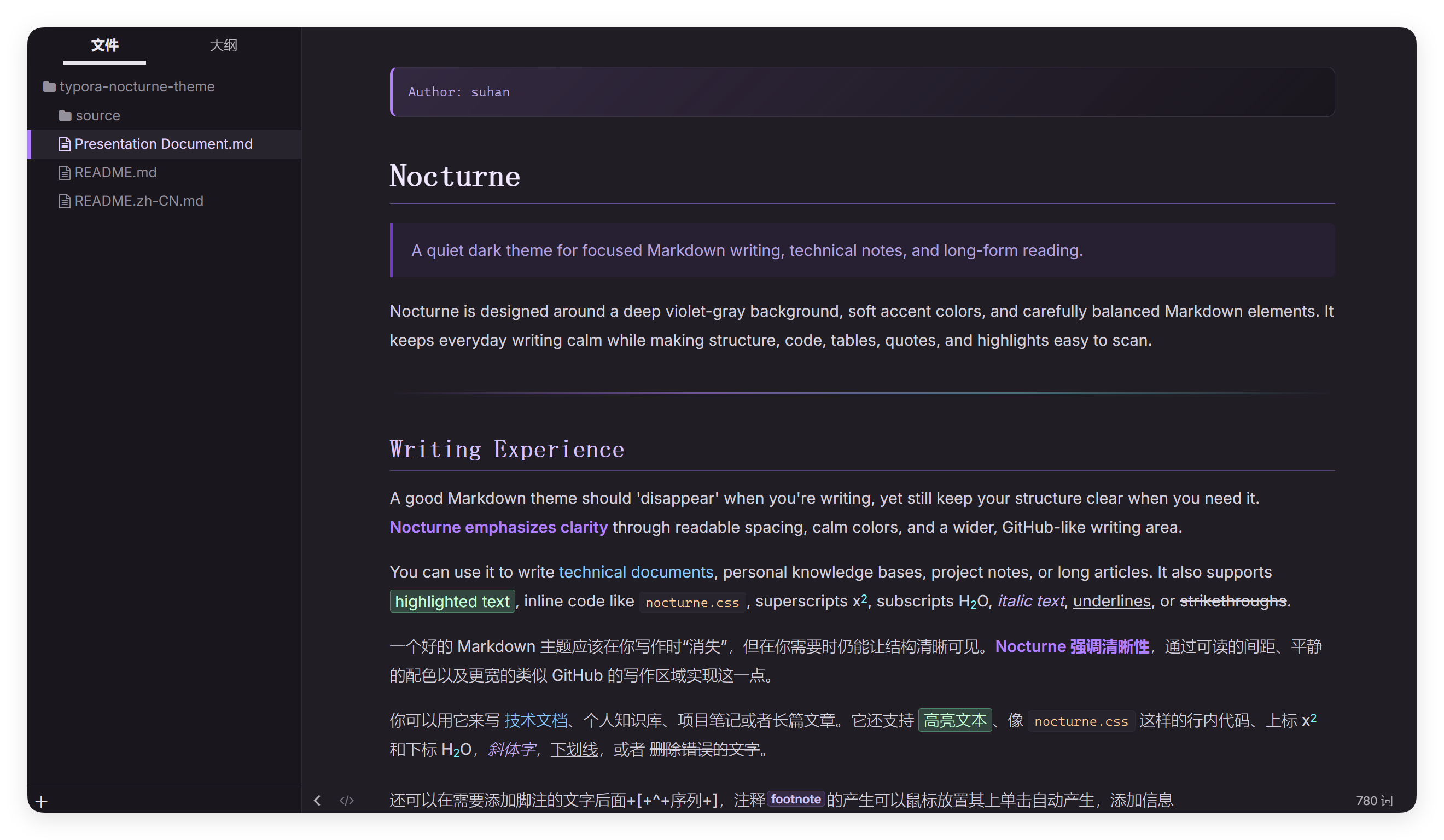
Nocturne uses deep purple-gray backgrounds, soft violet accents, readable code styling, and carefully tuned Markdown elements for focused writing, technical notes, and long-form reading.
Screenshots
Features
- Single CSS file installation
- Dark purple-gray palette inspired by Kiro IDE
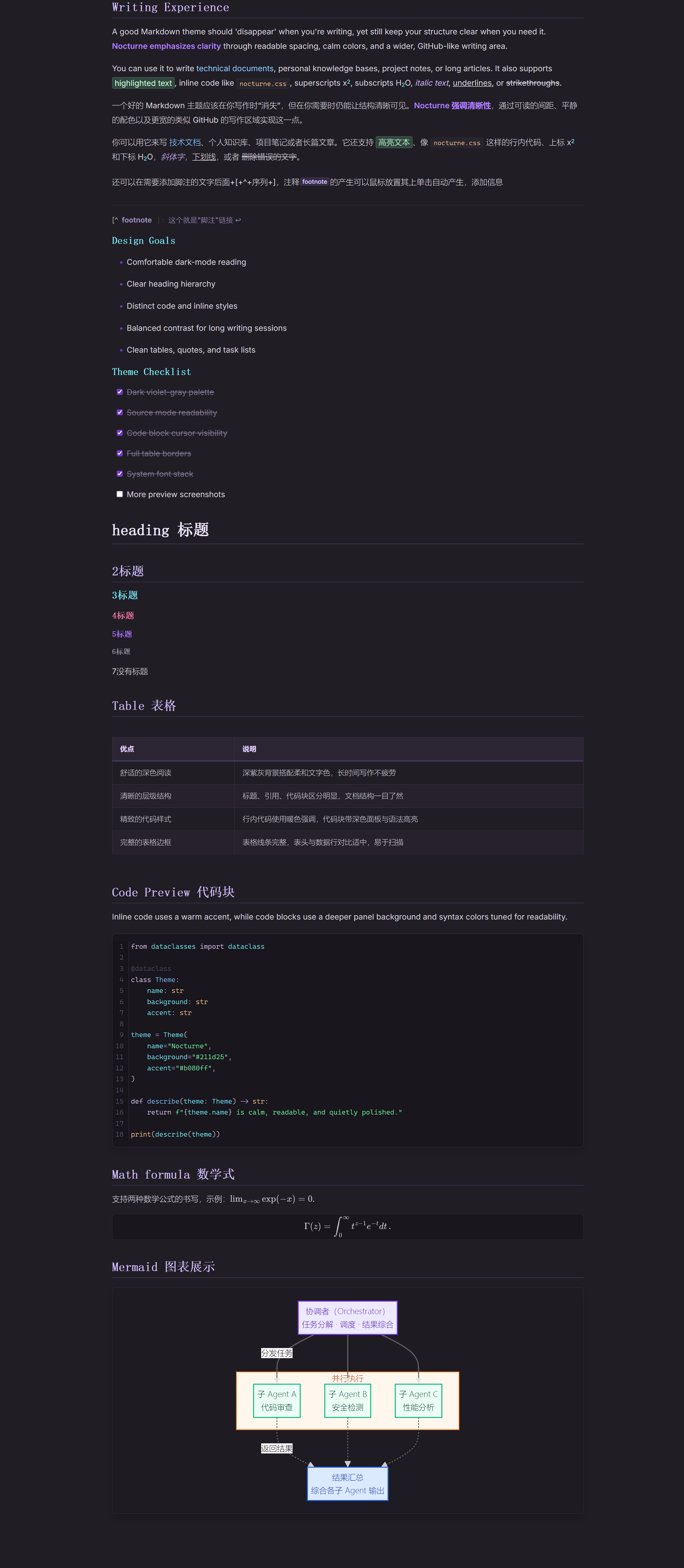
- Wider GitHub-like writing area
- Clear heading hierarchy from
h1toh6 - Improved code block readability and cursor visibility
- Carefully tuned text selection colors in editor, source mode, and code blocks
- Distinct styles for links, bold text, inline code, highlights, superscript, and subscript
- More readable tables with full cell borders
- Refined blockquotes, task lists, horizontal rules, and sidebar active states
- Better support for source mode, YAML blocks, raw HTML blocks, math blocks, and Mermaid diagrams
- System font stack by default, with no bundled font dependency
Recommended For
- Markdown notes
- Programming documentation
- Knowledge bases
- Technical writing
- Long-form reading in dark mode
Installation
- Download
nocturne.css. - Open Typora.
- Go to
Preferences→Appearance→Open Theme Folder. - Copy
nocturne.cssinto the Typora theme directory. - Restart Typora.
- Select Nocturne from the Themes menu.
Fonts
This theme does not bundle custom fonts. It uses system fonts by default for better portability.
Recommended optional fonts:
- Body text: system UI fonts, Inter, Noto Sans CJK, Microsoft YaHei, PingFang SC
- Headings: system UI fonts, Noto Serif CJK SC, Source Han Serif SC, Songti SC
- Code: Cascadia Code, Fira Code, JetBrains Mono, Consolas, Menlo
Tested On
- Windows
- macOS