Screenplay
Screenplay
A lightweight screenplay theme for Typora, following industry-standard format with automatic formatting and corrected scene numbering.
Installation
- Download the zipped project package from Github.
- Copy the
screenplay.cssfile to your Typora theme library:-
Windows :
%APPDATA%\Typora\themes -
macOS :
~/Library/Application Support/abnerworks.Typora/themes -
Linux :
~/.config/Typora/themes
-
Windows :
- Launch or restart Typora and choose** **Better Screenplay from the Themes menu (Themes → Better Screenplay).
Features
- Industry-standard formatting : Follows professional screenplay margins, spacing, and positioning.
- Corrected Scene Numbering : Scene numbers are correctly placed** **outside the right margin and above the heading (per industry standard).
- Auto-formatting elements : Parentheticals automatically include enclosing parentheses.
- One-page-per-minute ratio : Uses 12pt Courier Screenplay font for accurate timing.
- Print-ready : Exports clean PDFs with proper page breaks and formatting.
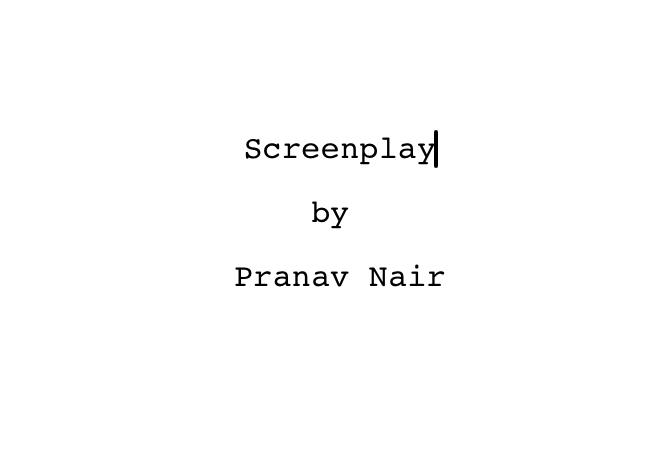
- Title page support : Blockquotes create centered title page elements with automatic page breaks.
Formatting Guide
Scene Headings (h1)
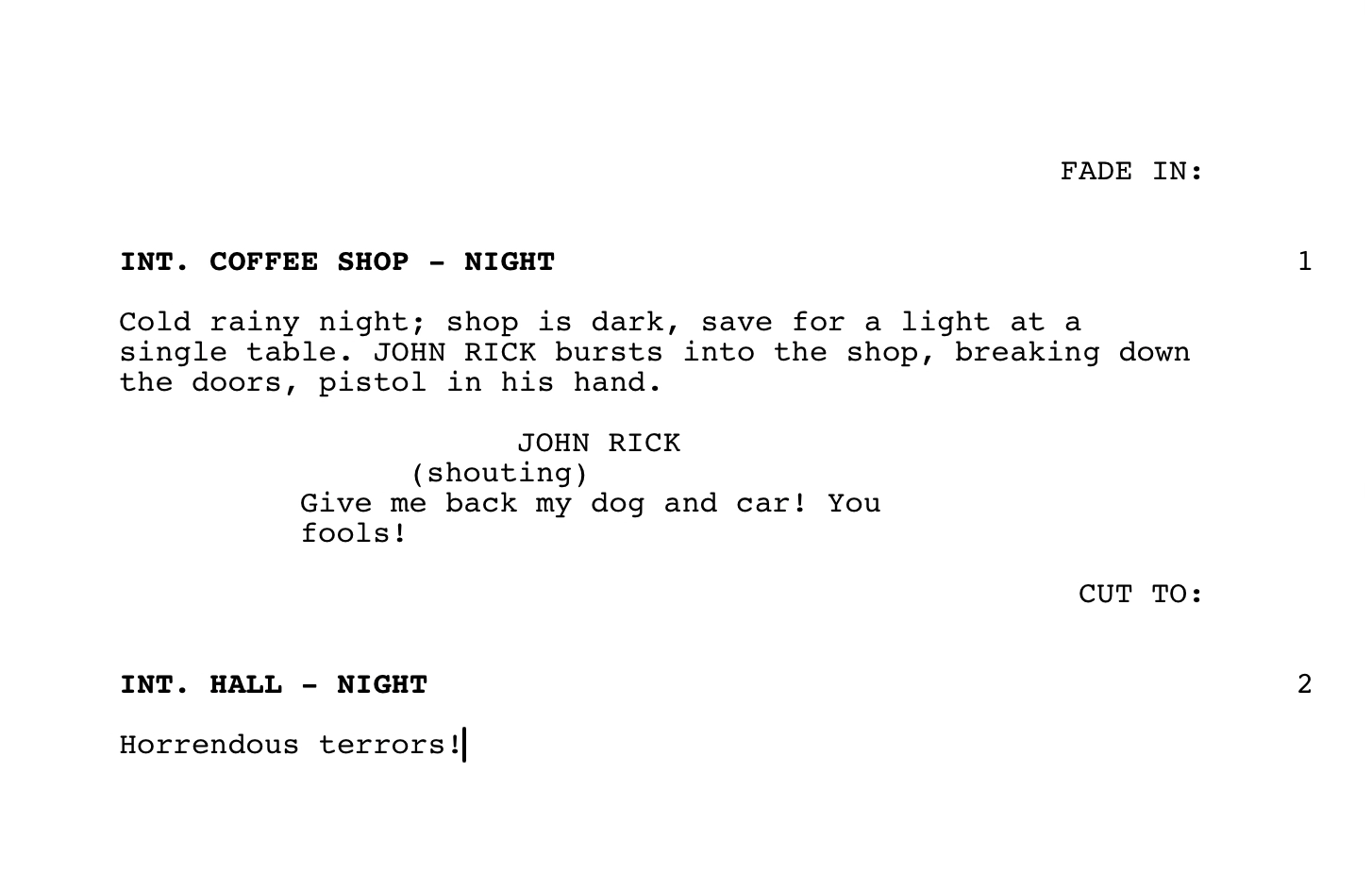
Create scene headings using a single #. They will automatically:
- Convert to UPPERCASE and bold
- Be numbered on the right (outside the margin)
- Include proper spacing
Markdown
# INT. COFFEE SHOP - NIGHT
Known Limitation: Scene numbers only appear after you type at least one character into the heading. This is a limitation of how CSS counters work - they require actual text content to display. The scene number will appear as soon as you begin typing your scene heading.
Action (Normal Text)
Write action descriptions as regular paragraphs (no markdown formatting needed). Action lines are left-aligned and describe what happens on screen.
Markdown
Cold rainy night; shop is dark, save for a light at a single table. JOHN RICK bursts into the shop, breaking down the doors, pistol in his hand.
Character Names (h2)
Use ## for character names. They will automatically:
- Convert to UPPERCASE
- Position at 3.7 inches from the left margin
Markdown
## JOHN
Dialogue (h3)
Use ### for dialogue lines immediately after a character name. Dialogue will:
- Position at 2.5 inches from the left margin
- Wrap at 6 inches from the left margin
- Maintain proper screenplay formatting
Markdown
### Give me back my dog and car! You fools!
Parentheticals (h4)
Use #### for parentheticals (actor directions within dialogue). They will automatically:
- Add opening and closing parentheses
- Position at 3.1 inches from the left margin
- Appear in lowercase or as written
Markdown
#### shouting
Transitions (h5)
Use ##### for transitions (CUT TO, FADE OUT, etc.). They will automatically:
- Convert to UPPERCASE
- Right-align on the page
Markdown
##### CUT TO:
Title Page (Blockquotes)
Use blockquotes (>) to create title page elements. They will automatically:
- Center on the page
- Create a page break after the title page
- Format for standard screenplay title pages
Markdown
> **SCREENPLAY TITLE**
>
> Written by
>
> Your Name
Page Breaks (Horizontal Rules)
Use --- to force a page break when needed.
Markdown
---
Technical Specifications
- Font : Courier Screenplay (with Courier New and Courier as fallbacks)
- Font Size : 12pt
- Page Size : US Letter (8.5” × 11”)
-
Margins (Screen View) :
- Left: 1.5 inches
- Right: 1.25 inches (1 inch margin + allowance for scene number)
- Top: 1 inch
- Bottom: 1 inch
- Character Name Position : 3.7 inches from left edge
- Dialogue Position : 2.5 to 6 inches from left edge
- Parenthetical Position : 3.1 inches from left edge
Credits
Created by Pranav Nair
v2.0 of the Screenplay Theme.
Designed and tested on macOS. Not fully tested, but should work for Windows/Linux.
Note: README and comments were enhanced using AI assistance.