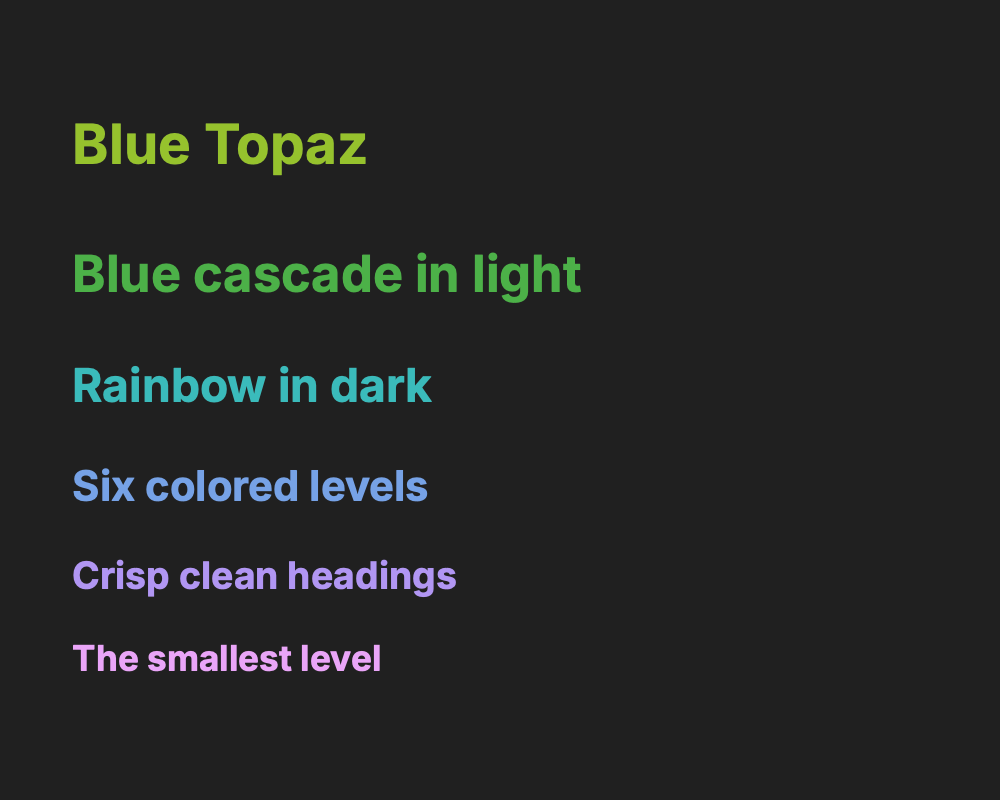
Obsidian Blue Topaz
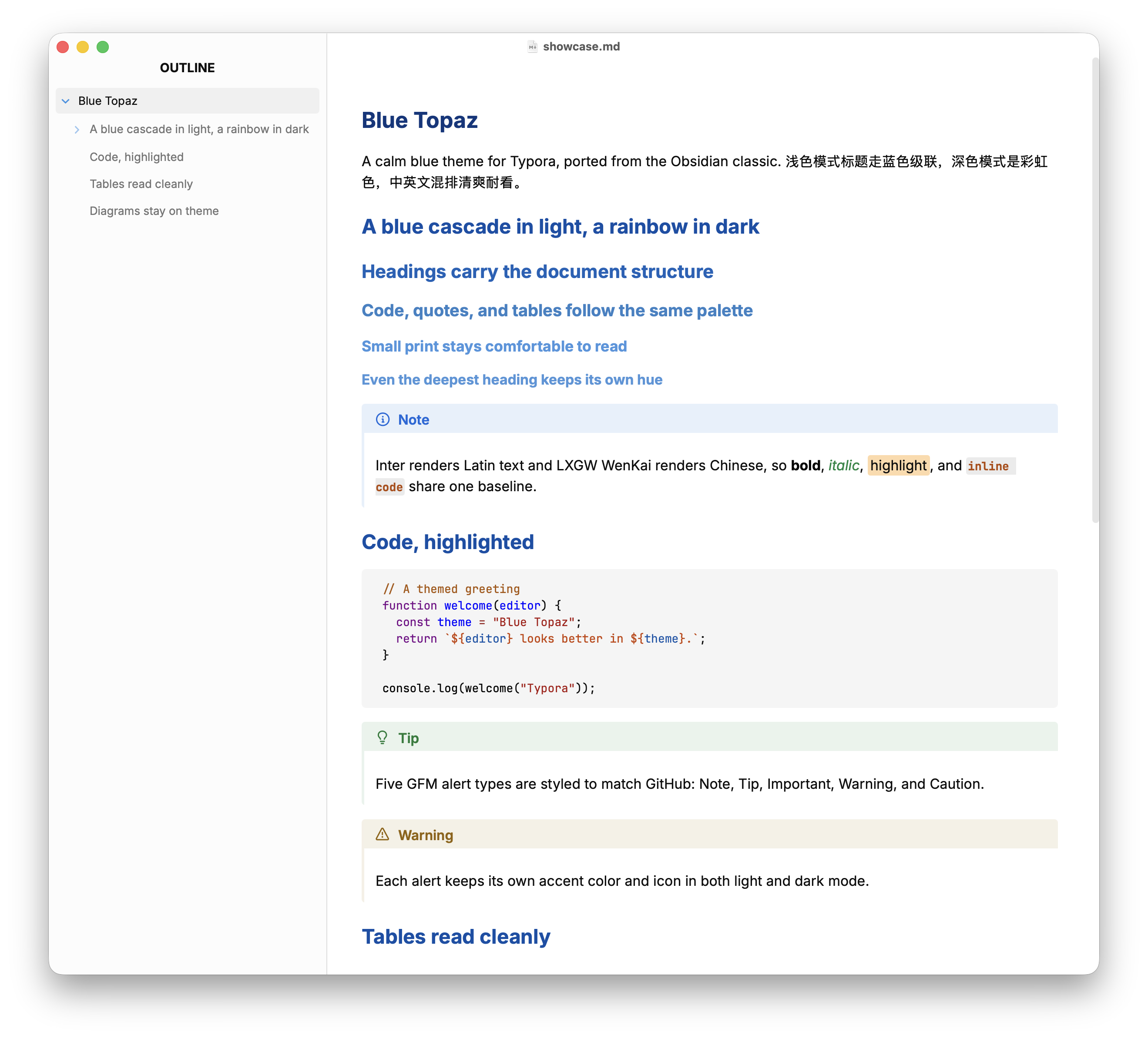
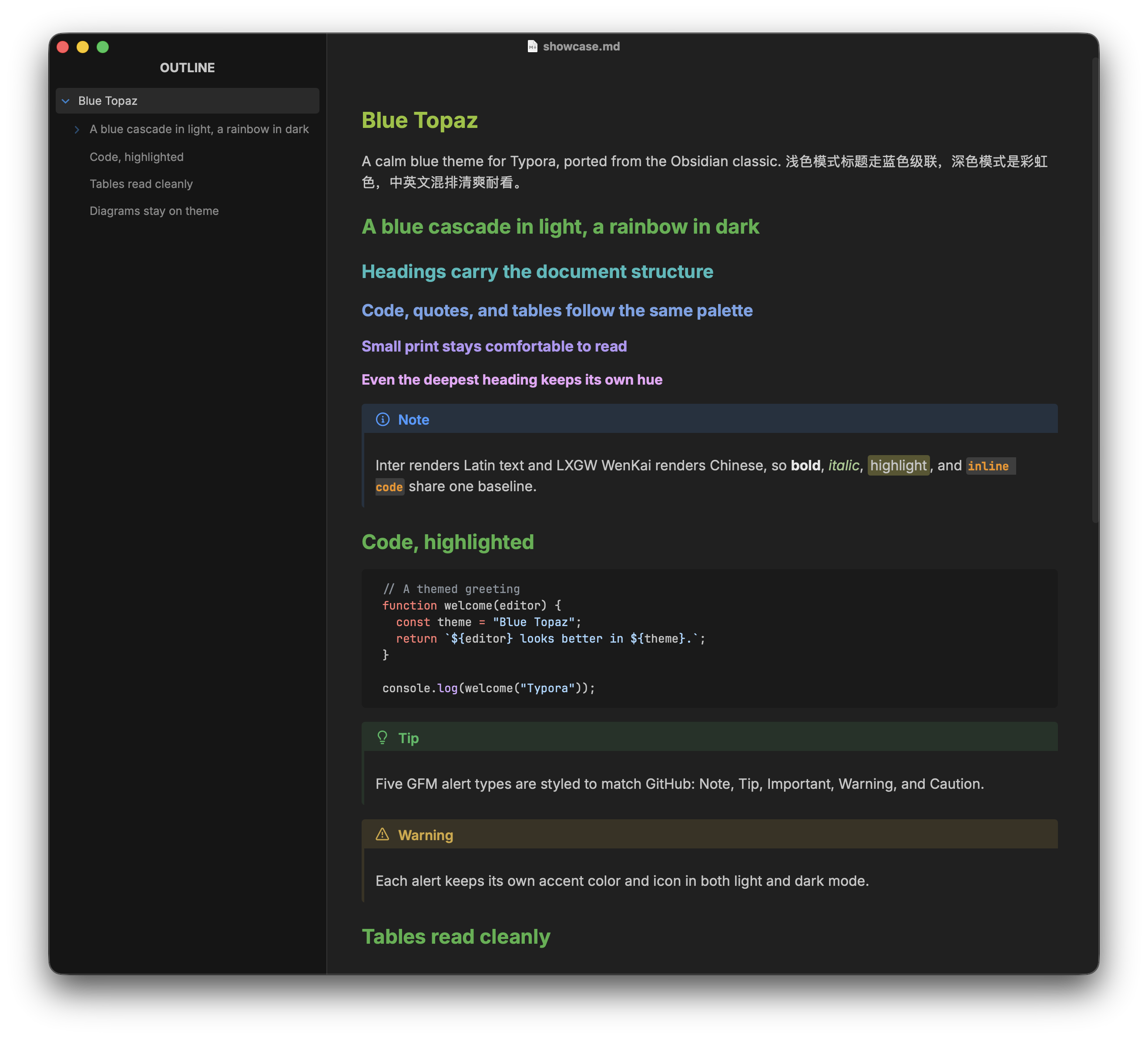
A Typora port of the Blue Topaz theme for Obsidian. It adds colored headings (a blue cascade in light mode, rainbow hues in dark), code highlighting, GFM alert styling, and a themed Typora UI. If you already use Blue Topaz in Obsidian, your Typora notes get the same look.
Features
- Light and dark from one source:
blue-topaz-dark.cssimportsblue-topaz.css, then overrides the palette, code highlighting, and print styles. - A blue heading cascade in light mode and rainbow hues in dark.
- GFM alerts (Note, Tip, Important, Warning, Caution) matching GitHub.
- Code highlighting based on CodeMirror’s default palette in light mode and GitHub Dark in dark mode.
- Mermaid diagrams, focus mode, themed tables, task lists, blockquotes,
details/summary, definition lists, multi-color highlight, and superscript/subscript. - A themed Typora UI: sidebar, file tree, search, Quick Open, preferences, modals, and source mode.
- Colored text (links, inline code, emphasis, headings, and alert labels) meets WCAG AA contrast.
- Print and export follow the selected theme, so dark stays dark and light stays light.
- Bundled Inter and JetBrains Mono, plus an optional LXGW WenKai fallback for Chinese.
Light Mode
Dark Mode
Installation
Requires Typora 1.13 or later. Download and extract the theme, then copy blue-topaz.css, blue-topaz-dark.css, and the entire blue-topaz/ folder into Typora’s theme folder (Preferences > Appearance > Open Theme Folder). Restart Typora and pick Blue Topaz or Blue Topaz Dark from the Themes menu. The gallery title is Obsidian Blue Topaz, but the installed theme shows as Blue Topaz and Blue Topaz Dark in Typora’s menu.
License
MIT for the theme CSS; bundled fonts use the SIL Open Font License 1.1.