Alto
Introduce 简介
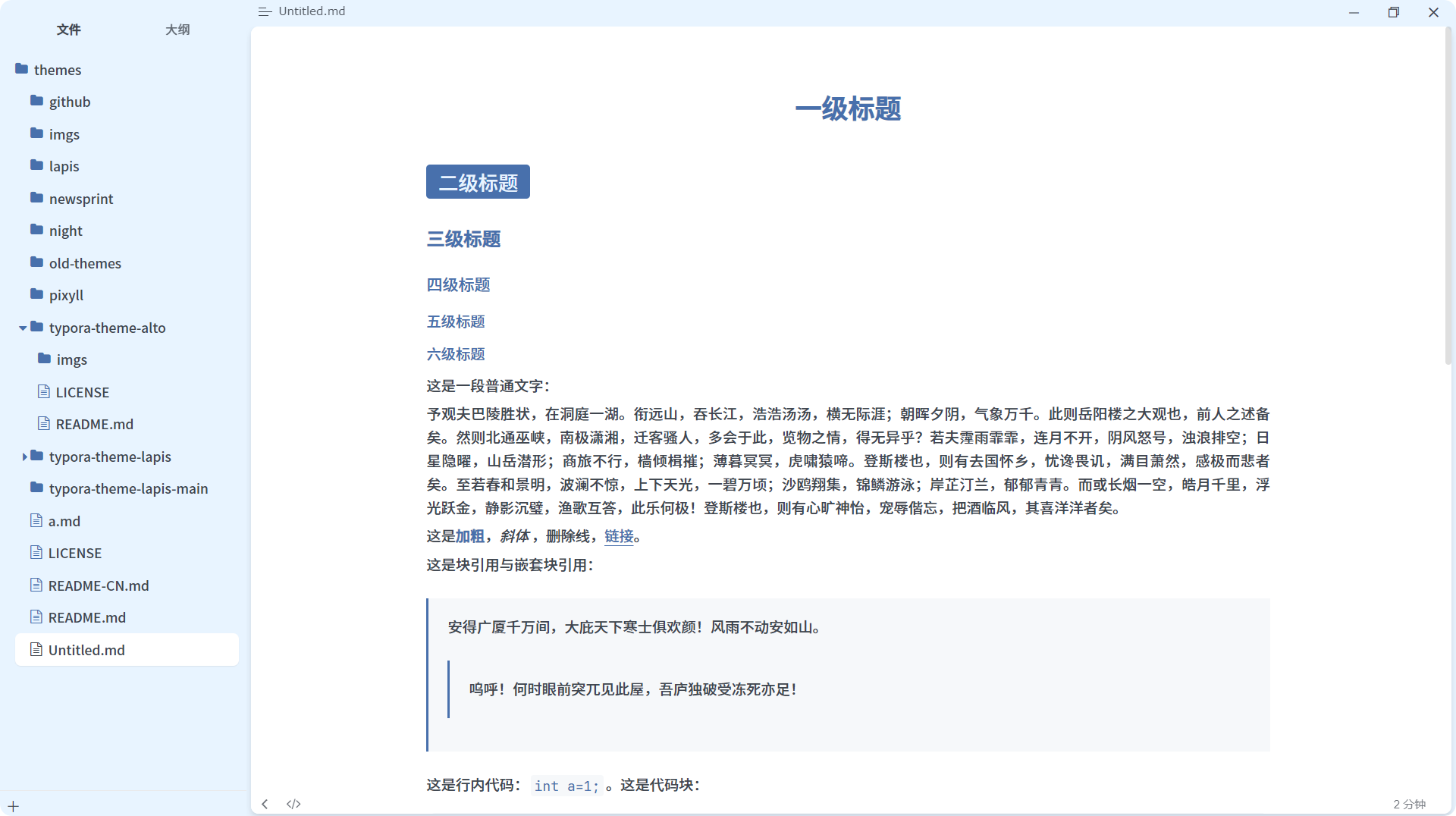
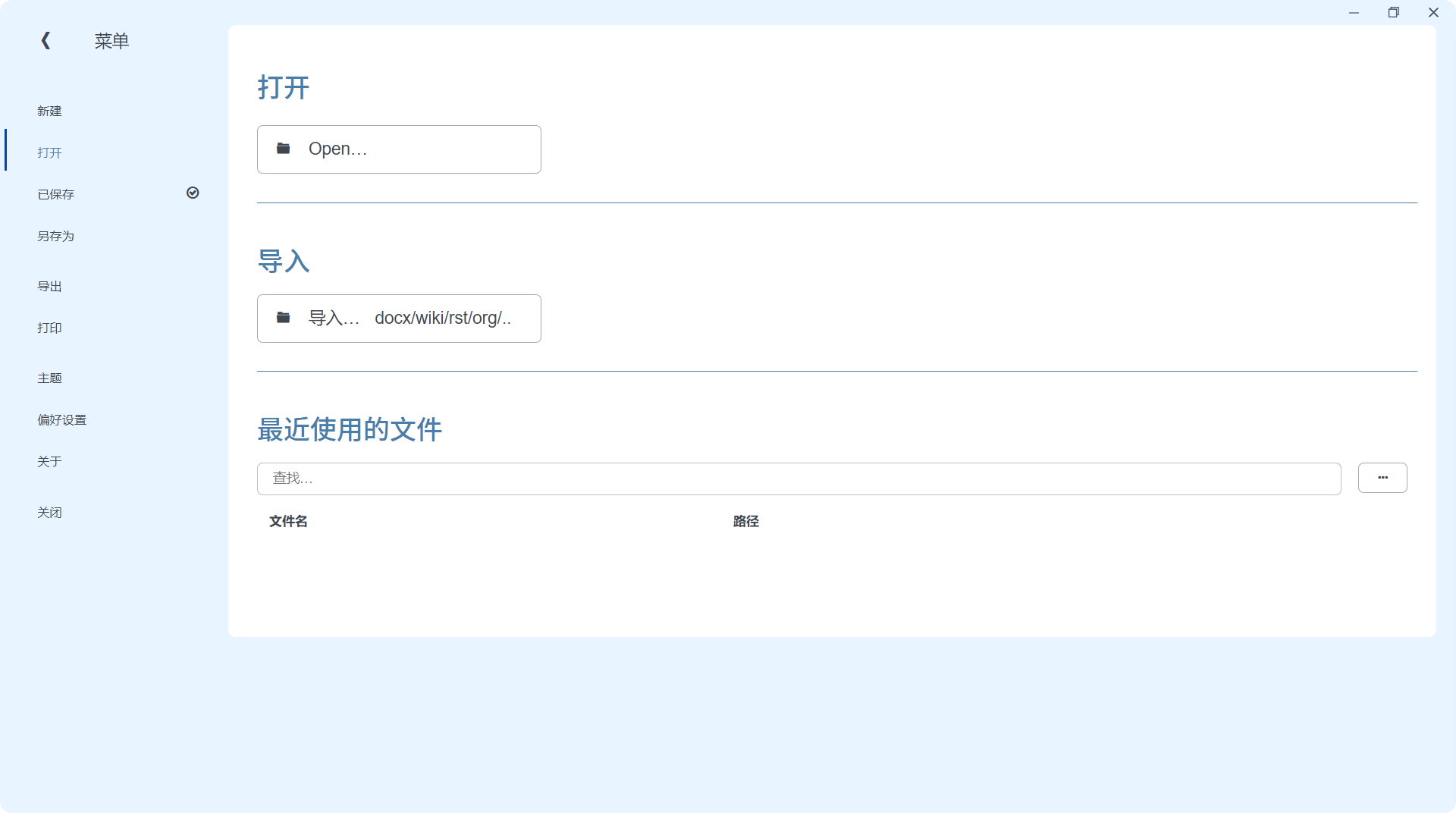
Alto 保留了主题 Lapis 几乎所有的样式,在这基础上大幅修改了界面风格
The theme retains almost all of the writing area styles from Lapis , while Alto significantly adjusts the interface styles.
希望能在 一体化 的窗口样式下使用该主题
Please use this theme with “Unibody” in Window Style.
Preview 预览
Installation 安装
- Clone this repository or download
typora-theme-alto.zipfrom Latest Release. - In Typora, open “Preferences” (
File>Preferences). And then switch to the Appearance tab and click the “Open Theme Folder” button. - Copy the
alto.cssfiles and thealtofolder into Typora’s theme folder. - In Typora, open “Preferences” (
File>Preferences). And then switch to the Appearance tab and click the “Unibody” button. - Restart Typora and select the Alto theme from the theme menu.
Credits 致谢
- 主题 Lapis 以及 ta 的作者 YiNN
- 部分界面样式的灵感来源于 Arc 以及 Microsoft 365
- The theme Lapis and its creator YiNN
- Some interface style inspirations are derived from Arc and Microsoft 365
Notes 说明
- 由于我做出修改的部分大多都是针对于界面部分,所以你也可以通过很少的修改去将他套在其他主题上,为此,我将界面相关的修改放在了
alto.css的Alto Style中,并将颜色放在了Alto Own Color中 -
给个 star 呗⭐
- Since most of my modifications focus on the interface, you can easily apply them to other themes with minimal changes. To facilitate this, I have organized the interface-related changes under
Alto Styleinalto.cssand placed the color settings underAlto Own Color. - Please consider giving it a star ⭐.